
Last modified July 7, 2026
Install an application using the app platform
Giant Swarm runs Flux on every management cluster, and Flux HelmRelease is the recommended way to deploy applications to your workload clusters. This guide walks you through installing a hello-world demo and exposing it through Envoy Gateway (the Giant Swarm default for ingress traffic) with a Gateway API HTTPRoute.
Note: If you have existing deployments using the legacy Giant Swarm App custom resource, migration guidance is coming soon. For new deployments, follow this guide.
For a deeper reference covering every Flux flag and option, see Deploying an application via a Flux HelmRelease.
Requirements
You need:
- A running workload cluster. If you don’t have one, follow Provision your first workload cluster.
- Gateway API and Envoy Gateway installed in that cluster. The quickest way is the Gateway API bundle. See Installing Gateway API with Envoy Gateway. Once installed, the bundle creates a default Gateway named
giantswarm-defaultthat your routes can attach to. - The Flux CLI installed locally.
- Access to the management cluster (see kubectl gs login).
- Access to the organization namespace where your cluster lives.
List the organizations you have access to:
kubectl gs get organizations
Then set environment variables for the org, namespace, and cluster name. We use these in every command below:
export ORGANIZATION=testing
export NAMESPACE=org-${ORGANIZATION}
export CLUSTER=test01
Step 1: Check what’s already installed
Before adding anything, list the Helm releases already running in your organization namespace, filtered to your cluster:
flux get helmreleases \
  --namespace ${NAMESPACE} \
  --label-selector giantswarm.io/cluster=${CLUSTER}
You’ll see the apps that ship with the cluster: the default-apps bundle, observability tooling, and other managed components. Confirm the Gateway API bundle is among them. If it isn’t, install it first using the Gateway API installation guide.
You can also confirm the default Gateway is ready, from your workload cluster:
kubectl get gateway --namespace envoy-gateway-system giantswarm-default
The PROGRAMMED column should read True once the Gateway is reconciled.
Step 2: Find your cluster’s base domain
Every workload cluster comes with a wildcard DNS record, so apps you expose are reachable at <name>.${CLUSTER}.<base-domain>. Read the base domain from the cluster values ConfigMap:
kubectl get configmap \
  --namespace ${NAMESPACE} \
  ${CLUSTER}-cluster-values \
  -o jsonpath="{.data.values}" | grep baseDomain
You’ll see something like baseDomain: test01.capi.aws.k8s.gigantic.io. Save that for the next step.
Step 3: Deploy the hello-world app
The hello-world chart includes an Ingress resource by default. Since we’re routing through Gateway API instead, disable that with a small values.yaml. Save the following as values.yaml in your current directory:
ingress:
  enabled: false
Then create the OCIRepository for the chart:
flux create source oci ${CLUSTER}-hello-world \
  --url oci://gsoci.azurecr.io/charts/giantswarm/hello-world \
  --tag 3.0.2 \
  --namespace ${NAMESPACE} \
  --interval 60m
Then the HelmRelease, pointing at your values.yaml:
flux create helmrelease ${CLUSTER}-hello-world \
  --namespace ${NAMESPACE} \
  --chart-ref OCIRepository/${CLUSTER}-hello-world \
  --values ./values.yaml \
  --kubeconfig-secret-ref ${CLUSTER}-kubeconfig \
  --target-namespace default \
  --label giantswarm.io/cluster=${CLUSTER} \
  --release-name hello-world \
  --interval 60m
What each flag does:
--chart-refpoints at the OCIRepository created in the previous command.--kubeconfig-secret-reftells Flux which workload cluster to install into. The Secret is created for you alongside the cluster and follows the<cluster>-kubeconfignaming convention.--target-namespaceis the namespace in the workload cluster where the chart’s resources are created.--label giantswarm.io/cluster=${CLUSTER}makes the resource show up under the correct cluster in the developer portal.
Wait for the HelmRelease to report Ready=True:
flux get helmrelease \
  --namespace ${NAMESPACE} \
  ${CLUSTER}-hello-world
At this point, the hello-world Service is running in the workload cluster but isn’t reachable from outside yet.
Step 4: Create an HTTPRoute
Apply an HTTPRoute to the workload cluster that attaches to the default Gateway and routes hello.<base-domain> to the hello-world Service. Replace the base domain with yours:
apiVersion: gateway.networking.k8s.io/v1
kind: HTTPRoute
metadata:
  name: hello-world
  namespace: default
spec:
  parentRefs:
    - name: giantswarm-default
      namespace: envoy-gateway-system
  hostnames:
    - hello.test01.capi.aws.k8s.gigantic.io
  rules:
    - matches:
        - path:
            type: PathPrefix
            value: /
      backendRefs:
        - name: hello-world
          port: 80
Save it as hello-world-route.yaml and apply it against the workload cluster:
kubectl apply -f hello-world-route.yaml
Check that the route is accepted by the Gateway:
kubectl describe httproute --namespace default hello-world
Look for Condition: Accepted, Status: True in the output.
Step 5: Try it out
Curl the hello-world endpoint over HTTP:
curl -Is http://hello.test01.capi.aws.k8s.gigantic.io
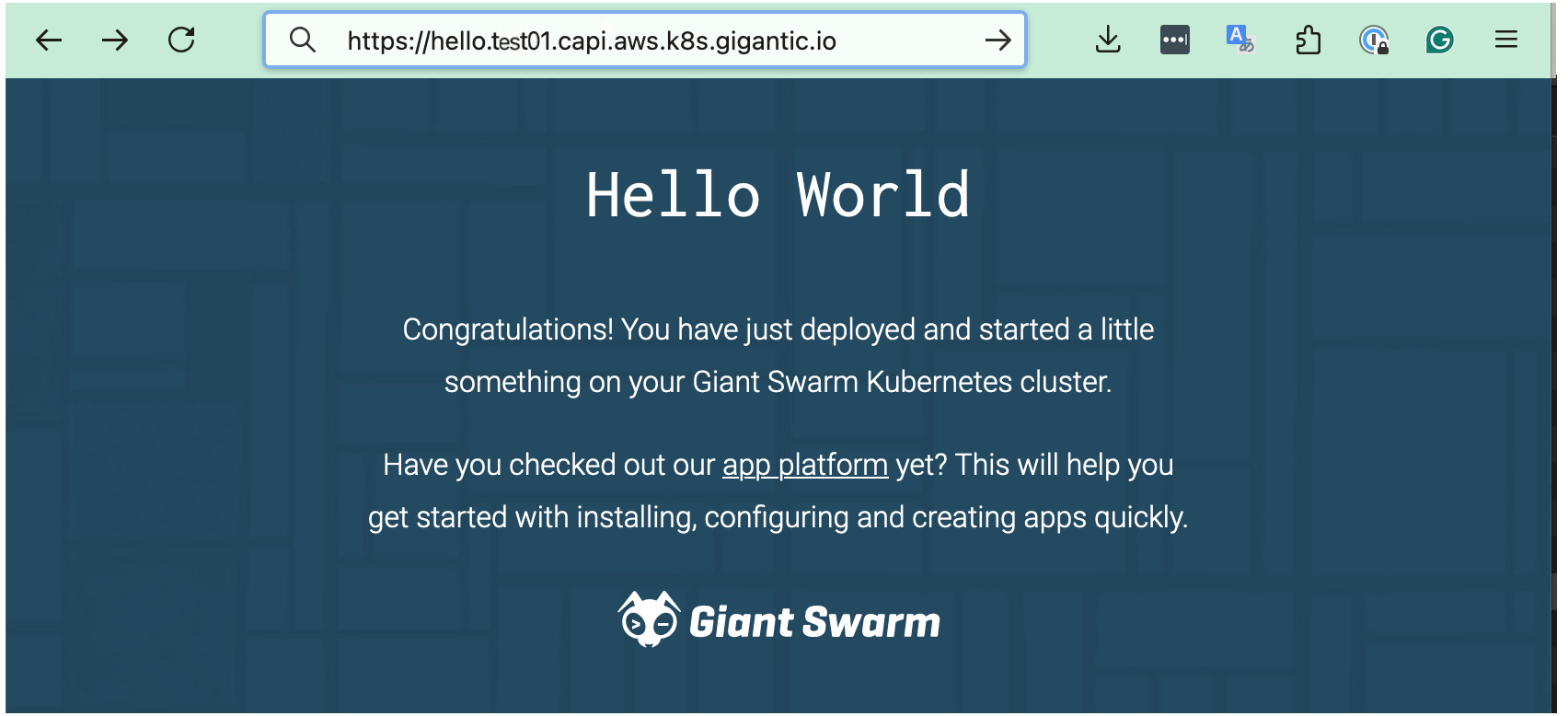
You should get back HTTP/1.1 200 OK. To enable HTTPS, add the hello subdomain to your Gateway’s HTTPS listener and configure cert-manager for Gateway API. See Installing Gateway API with Envoy Gateway.
Step 6: Clean up
To remove the demo, delete the HTTPRoute from the workload cluster, then the HelmRelease and OCIRepository from the management cluster:
kubectl delete -f hello-world-route.yaml

flux delete helmrelease --namespace ${NAMESPACE} ${CLUSTER}-hello-world
flux delete source oci  --namespace ${NAMESPACE} ${CLUSTER}-hello-world
Next step
After learning how to deploy an application in the workload cluster, dive into how networking works in your cluster and how to configure security hardening of your application.
Need help, got feedback?
We listen to your Slack support channel. You can also reach us at support@giantswarm.io. And of course, we welcome your pull requests!